

A Valkey® server holds several separate databases, numbered from 0. Each one has its own keys. SELECT switches the database your connection uses.
Syntax
SELECT <index>
<index>: the database number, from0up to one less than thedatabasessetting. With the default of 16, that’s 0 to 15.
From the SELECT documentation.
Prerequisites
- Valkey installed and running, for example with How to Install Valkey on macOS.
- A terminal. The valkey-cli commands are the same on macOS, Ubuntu and Windows (inside WSL).
Step 1: See How Many Databases There Are
valkey-cli
CONFIG GET databases
1) "databases"
2) "16"
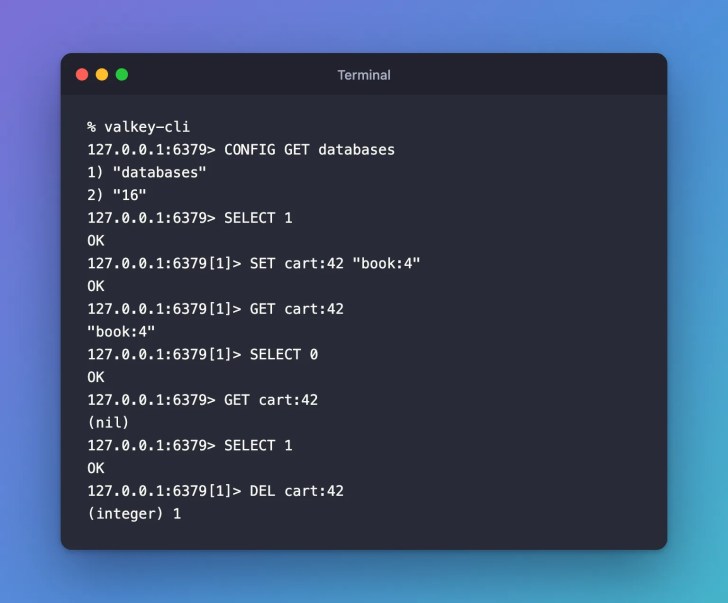
This Valkey has 16 databases. valkey-cli starts in database 0.
Step 2: Switch to Database 1
SELECT 1
OK
The prompt changes to 127.0.0.1:6379[1]>, so you can always see which database you’re in.
Step 3: See That Each Database Keeps Its Own Keys
SET cart:42 "book:4"
OK
GET cart:42
"book:4"
SELECT 0
OK
GET cart:42
(nil)
Database 0 doesn’t see the key you saved in database 1.

Clean Up
SELECT 1
OK
DEL cart:42
(integer) 1
exit
Common Mistakes
| Mistake | What happens | Do this instead |
|---|---|---|
| Forgetting which database you’re in | A key you saved seems to be missing, and GET answers (nil) | Check the [1] in the prompt, and SELECT the right database |
Expecting the database to stay selected after exit | A new valkey-cli starts in database 0 again | Start it with valkey-cli -n 1 |
FAQ
Can I open valkey-cli straight into another database?
Yes. valkey-cli -n 1 starts in database 1, and its prompt shows [1].
Should different apps share one Valkey with different databases?
Valkey’s SELECT documentation suggests using databases to separate data that belongs to the same app, and a separate Valkey server for unrelated apps.
Does Valkey Cluster support SELECT?
Yes. Valkey 9.0 and later support several databases in cluster mode, and SELECT switches between them there too.
Conclusion
SELECT moves your connection to another numbered database, and the prompt shows where you are. Each database keeps its own keys.
Related
- Valkey Tutorial — Part 2: Your First Valkey Commands with valkey-cli
- How to Connect to Valkey with valkey-cli
Additional Resources
Valkey® is a registered trademark of LF Projects, LLC. Redis® is a registered trademark of Redis Ltd. Any rights therein are reserved to Redis Ltd. Other names mentioned are trademarks of their respective owners. JD Bots isn’t affiliated with the Valkey project, LF Projects or Redis Ltd., and isn’t endorsed, supported or certified by them.