


The Link component moves visitors between the pages of a TanStack Start app. It renders a normal link, but a click changes the page without loading the whole site again, and TypeScript checks every address you link to.
This post shows its syntax, then adds a button-style link to the home page of a real app, the Bookshop.
Syntax
Syntax
import { Link } from "@tanstack/react-router";

<Link to="<address>">
	<text>
</Link>
tois the address of a page in your app, such as"/books". TypeScript accepts only addresses that exist.<text>is what visitors click.Linkalso takes the attributes of a normal link, such asclassNamefor styles andtargetto open a new tab.
Every option is in TanStack Router’s navigation guide and the Link reference.
Step 1: Import Link
Open the page that needs the link, here the home page, src/routes/index.tsx. Add Link to the import from @tanstack/react-router:
src/routes/index.tsx (excerpt)
import { createFileRoute, Link } from "@tanstack/react-router";
Step 2: Add the Link
Add a link to the Books page below the list of featured books. The Tailwind CSS classes in className make it look like a button:
src/routes/index.tsx (excerpt)
<Link
	to="/books"
	className="mt-6 inline-block rounded bg-gray-900 px-4 py-2 text-white"
>
	Browse all books
</Link>
The complete file:
src/routes/index.tsx
import { createFileRoute, Link } from "@tanstack/react-router";

export const Route = createFileRoute("/")({ component: Home });

function Home() {
	return (
		<main className="mx-auto max-w-2xl p-8">
			<h1 className="text-4xl font-bold">Welcome to the Bookshop</h1>
			<p className="mt-4 text-lg">Find your next favourite book.</p>
			<h2 className="mt-8 text-2xl font-semibold">Featured books</h2>
			<ul className="mt-2 list-disc pl-6 text-lg">
				<li>The Paper Lantern Café</li>
				<li>Salt and Starlight</li>
			</ul>
			<Link
				to="/books"
				className="mt-6 inline-block rounded bg-gray-900 px-4 py-2 text-white"
			>
				Browse all books
			</Link>
		</main>
	);
}
Open the home page:

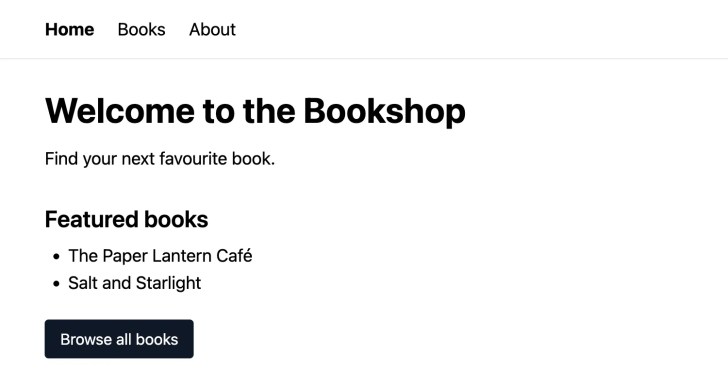
Click Browse all books: the Books page opens, and the rest of the site doesn’t load again.
Step 3: Let TypeScript Check the Address
If an address has a typo, such as "/book" instead of "/books", the type check catches it. Run it in your project folder:
Terminal
npx tsc
Output
npm notice run npx
npm notice run 'tsc'
src/routes/index.tsx(16,5): error TS2820: Type '"/book"' is not assignable to type '"." | ".." | "/" | "/about" | "/books"'. Did you mean '"/books"'?
The error lists every address your app has and suggests the closest one. Fix the typo, and the error goes away.
Common Mistakes
| Mistake | What happens | Do this instead |
|---|---|---|
Using <a href="/books"> for a page in your app | Every click loads the whole site again | Use <Link to="/books"> |
| Linking to an address that doesn’t exist | npx tsc reports error TS2820 | Use one of the addresses the error lists |
FAQ
Can visitors open a Link in a new tab? Yes. Link renders an <a> tag with a real address, so right-click and Cmd+click or Ctrl+click work as on any link.
Why do pages open so fast? The Bookshop’s src/router.tsx sets defaultPreload: "intent", which makes TanStack Router start loading a page when a visitor points at or focuses its link (navigation guide, Link Preloading).
How do I link to one book’s page? With the params option of Link, which fills in the dynamic part of an address. Part 4 of the series covers it.
Conclusion
Link needs one thing, the address in to. It takes any normal link attribute, moves between pages without a full reload, and TypeScript makes sure the address exists.
Additional Resources
- Navigation in the TanStack Router docs
- Link component reference
- Link options
Related
- TanStack Start Tutorial — Part 3: Pages and Links: File-Based Routing
- TanStack Start Tutorial for Beginners, every part of the series
TanStack, React and other names mentioned are trademarks of their respective owners. JD Bots isn’t affiliated with or endorsed by TanStack.