


Custom execution data is a small label you save on a run of an n8n workflow, such as an order number. n8n shows it on the run and lets you filter the Executions list by it, so you can find the run for one order in seconds. In the Executions list, n8n calls it highlighted data.
This guide saves an order number from the Code node with $execution.customData.set(), then finds the run by that number.
Every screen, line of code and output on this page is real, run with n8n 2 in Docker on macOS.
Syntax
Syntax
$execution.customData.set(key, value);
$execution.customData: the custom data of the run that’s happening now.set(key, value): saves one value under a name. Both are text (strings). A key can be up to 50 characters, a value up to 255, and a run can hold up to 10 of them.setAll({ key1: 'value1', key2: 'value2' })replaces all of the run’s custom data at once.get(key)reads one value back, andgetAll()reads them all.
See Customize executions data in n8n’s docs. In the Code node’s Python mode, the same object is _execution.customData.
The Example
A workflow named Order lookup with a Code node that makes a sample order, number 1042, and saves the number on the run.
Prerequisites
- n8n running, signed in.
- On self-hosted n8n, the free Community Edition licence key, activated: custom execution data needs it.
Step 1: Save the Order Number in a Code Node
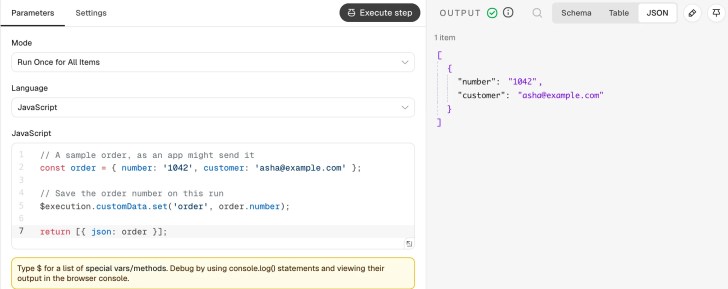
Create a workflow named Order lookup. Click Add first step, then Trigger manually. Click + after it, search for Code and choose Code in JavaScript. Replace the code with this:
Code node (JavaScript)
// A sample order, as an app might send it
const order = { number: '1042', customer: 'asha@example.com' };

// Save the order number on this run
$execution.customData.set('order', order.number);

return [{ json: order }];
The order number is text, '1042' in quotes, because custom data only takes strings. The last line passes the order on as the node’s output.
Click Execute step. The OUTPUT shows the order.

Step 2: See the Data on the Run
Close the panel and click Executions at the top of the workflow. Click the run, then the button with the list icon and a 1 at the top right. It shows the custom data the run saved.


Step 3: Find the Run by Its Order Number
Click the funnel icon above the list. Under Highlighted data, type order as the Key and 1042 as the Value. The list keeps only the runs for that order.


Clean Up
Order lookup was only an example. Open its ⋯ menu and choose Archive, then open the ⋯ menu of the archived workflow and choose Delete. Deleting a workflow also deletes its runs, and it can’t be undone.
FAQ
Can I save custom data without code?
Yes. The Execution Data node does the same with a form: add a saved field with a key and a value, and n8n saves it on each run.
Which plans have custom execution data?
On self-hosted n8n, the registered Community Edition and Enterprise. On n8n Cloud, the Pro and Enterprise plans (n8n’s docs).
Can the workflow read the value back?
Yes, while the run is going, in a Code node: $execution.customData.get('order') returns '1042', and getAll() returns every key and value saved so far.
Conclusion
One line, $execution.customData.set('order', '1042'), labels a run with the order it handled. The label shows on the run and works as a filter in the Executions list, which turns a long list of runs into the one you need.
Additional Resources
- Customize executions data (n8n docs)
- Code node (n8n docs)
Related
n8n and other names mentioned are trademarks of their respective owners. JD Bots isn’t affiliated with or endorsed by n8n GmbH.