 Skip to main content


PostgreSQL is a free, powerful database, and Docker can run it without installing anything else on your computer. This guide runs PostgreSQL in Docker with Docker Compose: one short file, compose.yaml, and one command start it. Then you connect to it with psql and stop it again without losing your data.
At the end, you’ll have PostgreSQL 18 running in a Docker container on your computer, reachable at localhost:5432 from your computer only, with its data kept in a Docker volume.
Prerequisites
- Docker Desktop, installed and running (Docker Desktop documentation (opens in a new tab)). Check it with
docker --version. It’s free for personal use, education and small businesses (Docker’s license terms (opens in a new tab)). - a code editor, such as Visual Studio Code
Every command here works the same in Terminal on macOS and Linux and in PowerShell on Windows.
Step 1: Create the compose.yaml File
Make a new folder named postgres-docker. In your code editor, create a file named compose.yaml in it:
services:
  db:
    image: postgres:18
    environment:
      POSTGRES_PASSWORD: local-only-password
    ports:
      - "127.0.0.1:5432:5432"
    volumes:
      - pgdata:/var/lib/postgresql

volumes:
  pgdata:
serviceslists the containers to run. There’s one, nameddb.image: postgres:18is the official PostgreSQL image at version 18, the newest release.POSTGRES_PASSWORDsets the password of the default user,postgres. It’s the one setting the image requires. Choose your own; this one only protects a database on your own computer."127.0.0.1:5432:5432"makes PostgreSQL reachable on port 5432, PostgreSQL’s usual port, and only from your own computer. Without127.0.0.1, Docker would accept connections from other computers on your network too.pgdata:/var/lib/postgresqlkeeps the database files in a Docker volume namedpgdata, so your data survives when the container is removed. From version 18, the image keeps its data in this folder.
Tip: If PostgreSQL is already installed on your computer, it’s probably using port 5432. Change the first number, for example to "127.0.0.1:5433:5432", and connect to port 5433.
Step 2: Start PostgreSQL
Open Terminal (PowerShell on Windows) in the postgres-docker folder, and run:
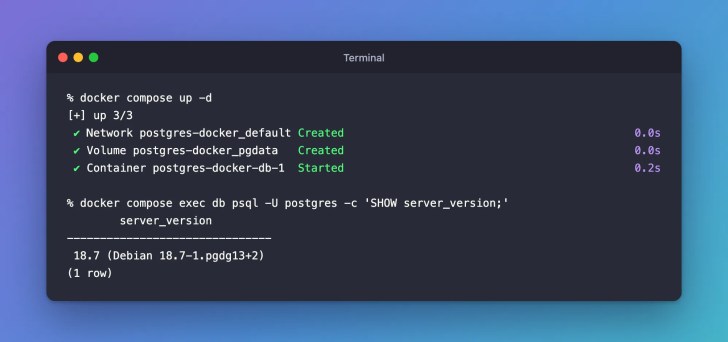
docker compose up -d
up starts everything in compose.yaml, and -d runs it in the background, so you get your Terminal back. Docker creates a network, the volume and the container:
[+] up 3/3
 ✔ Network postgres-docker_default Created                                            0.0s
 ✔ Volume postgres-docker_pgdata   Created                                            0.0s
 ✔ Container postgres-docker-db-1  Started                                            0.2s
If the PostgreSQL image isn’t on your computer yet, Docker downloads it first and shows an extra Pulled line.
Step 3: Check That It’s Running
docker compose ps
NAME                   IMAGE         COMMAND                  SERVICE   CREATED         STATUS        PORTS
postgres-docker-db-1   postgres:18   "docker-entrypoint.s…"   db        2 seconds ago   Up 1 second   127.0.0.1:5432->5432/tcp
STATUS says Up, and PORTS shows port 5432 on 127.0.0.1, your own computer.
Step 4: Connect with psql
psql is PostgreSQL’s command-line tool, and the image already includes it. This command runs it inside the container and asks PostgreSQL for its version:
docker compose exec db psql -U postgres -c 'SHOW server_version;'
docker compose exec dbruns a command inside the runningdbcontainer.psql -U postgresconnects as the default user,postgres.-c '…'runs one SQL command and returns.
        server_version
-------------------------------
 18.7 (Debian 18.7-1.pgdg13+2)
(1 row)
Your apps on this computer connect with this address: postgres://postgres:local-only-password@localhost:5432/postgres. More on running commands in a container: How to Run a Command Inside a Running Docker Compose Container (opens in a new tab).
Clean Up When You’re Done
To stop PostgreSQL and remove its container, run this in the postgres-docker folder:
docker compose down
[+] down 2/2
 ✔ Container postgres-docker-db-1  Removed                                            0.2s
 ✔ Network postgres-docker_default Removed                                            0.1s
The volume stays, so docker compose up -d starts PostgreSQL again with all your data.
Warning: docker compose down -v also deletes the volume, and every database in it. Use it only when you no longer need the data.
docker compose down -v
[+] down 1/1
 ✔ Volume postgres-docker_pgdata Removed                                              0.0s
More ways to stop and start without losing data: How to Stop, Start and Remove Docker Compose Containers Without Losing Data (opens in a new tab).
Common Mistakes
| Mistake | What happens | Do this instead |
|---|---|---|
Mounting the volume at /var/lib/postgresql/data with PostgreSQL 18 | The data isn’t stored where the image keeps it from version 18 | Mount it at /var/lib/postgresql |
Leaving out POSTGRES_PASSWORD | The container stops with Error: Database is uninitialized and superuser password is not specified. | Set your own password |
Writing "5432:5432" without 127.0.0.1 | Other computers on your network can reach the database | Keep 127.0.0.1: in front |
Running docker compose down -v to stop | The volume and all your data are deleted | Use docker compose down |
Troubleshooting
| Problem | Cause | Fix |
|---|---|---|
psql shows a screen that ends with (END) | The answer is wider than your Terminal, so psql opened its pager | Press q, or widen the window |
| Port 5432 is already in use | Another PostgreSQL runs on your computer | Change the first port number (see the tip in Step 1) |
| Something else goes wrong | The container’s log says why | See How to See the Logs of a Docker Compose Service (opens in a new tab) |
FAQ
Do I need to install PostgreSQL?
No. The image contains PostgreSQL and psql, so Docker Desktop is all you need.
Where is my data?
In the Docker volume, named postgres-docker_pgdata after the folder. It stays until you delete it with docker compose down -v.
Is PostgreSQL free?
Yes. PostgreSQL is open source and free to use. Docker Desktop is free for personal use, education and small businesses.
Conclusion
One compose.yaml file and docker compose up -d give you PostgreSQL 18 on your own computer, with its data in a volume that survives restarts. docker compose down stops it without losing anything.
Additional Resources
- The official postgres image (opens in a new tab) on Docker Hub, with its settings
- Docker Compose documentation (opens in a new tab)
- psql (opens in a new tab) in the PostgreSQL 18 documentation
Related
- Better Auth Tutorial — Part 2: Set Up Better Auth in Next.js with PostgreSQL, which runs its database this way
- PostgreSQL Tutorial for Beginners, a free course on PostgreSQL itself
PostgreSQL, Docker and other names mentioned are trademarks of their respective owners. JD Bots isn’t affiliated with or endorsed by the PostgreSQL Global Development Group or Docker, Inc.


0 comments