 Skip to main content


pgAdmin 4 can create a PostgreSQL database for you, with no SQL to type: one dialog, then Save. Here’s how to create a database in pgAdmin 4, using a small example database called recipes.
Every screen on this page is real, from pgAdmin 4 9.19 with PostgreSQL 19 on macOS.
Step 1: Open the Create Database Dialog
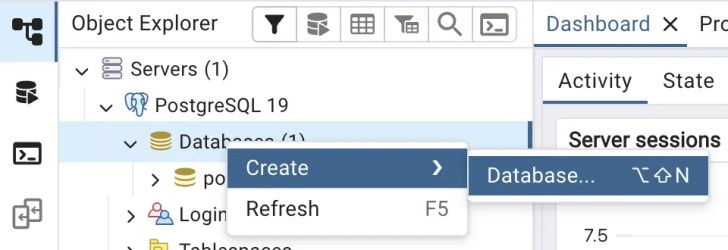
In the Object Explorer, open your server, here PostgreSQL 19. Right-click Databases and choose Create › Database…:
Step 2: Name the Database
On the General tab, type a name in Database. This guide uses recipes. Lowercase letters, digits and underscores are the safe choice for a name.
Owner is the user who will own the new database. It starts as the user pgAdmin is connected as, postgres here. Leave it, and leave the other fields empty:

Step 3: Check the SQL
Click the SQL tab to see the statement pgAdmin will run:
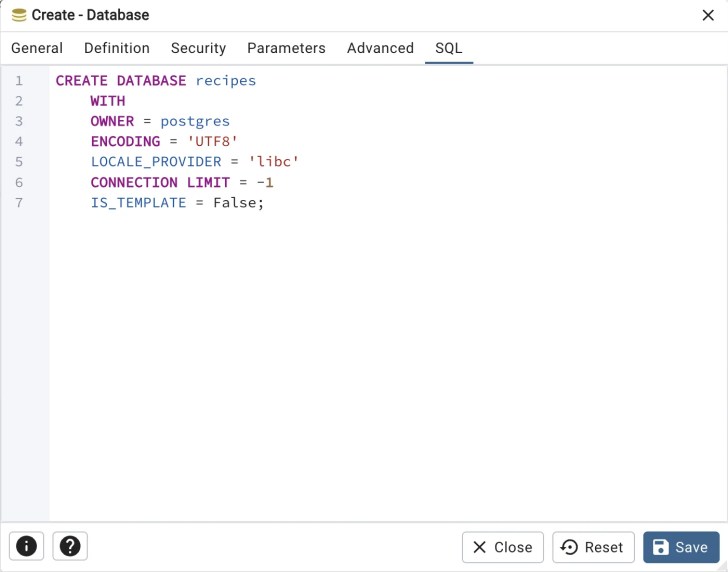
It’s a CREATE DATABASE statement with pgAdmin’s defaults spelled out: the owner, the UTF8 encoding, the locale provider, no connection limit, and not a template. You could run the same statement yourself in psql or in pgAdmin’s Query Tool.
Step 4: Save
Click Save. pgAdmin creates the database, connects to it and opens it in the Object Explorer:

Clean Up
To delete the example database, right-click recipes and choose Drop:

pgAdmin asks first. Click Drop:

Warning: Dropping a database deletes it and everything in it, and it can’t be undone.
recipes is gone from the list:

Common Mistakes
| Mistake | What happens | Do this instead |
|---|---|---|
| Leaving Database empty | Save stays greyed out, and pgAdmin shows 'Database' cannot be empty. | Type a name on the General tab. |
FAQ
Can I choose the encoding or the template?
Yes, on the Definition tab. Encoding is UTF8 by default, and with Template left empty the new database is a copy of template1, as the pgAdmin documentation (opens in a new tab) describes. template0 vs template1 in PostgreSQL explains the two templates.
Is this the same as CREATE DATABASE?
Yes. pgAdmin runs the CREATE DATABASE statement its SQL tab shows. Part 4 of the PostgreSQL Tutorial creates a database with that statement in psql.
Conclusion
Right-click Databases, choose Create › Database…, type a name and click Save. The SQL tab shows the exact statement pgAdmin runs, which is a handy way to learn the SQL behind each dialog.
Additional Resources
- pgAdmin 4 documentation: Database Dialog (opens in a new tab)
- PostgreSQL 19 documentation: CREATE DATABASE (opens in a new tab)
Related
- PostgreSQL Tutorial — Part 4: Create a Database
- How to Drop a Database in PostgreSQL
- template0 vs template1 in PostgreSQL
Postgres, PostgreSQL and the Slonik Logo are trademarks or registered trademarks of the PostgreSQL Community Association of Canada, and used with their permission.


0 comments