 Skip to main content


Everything you store in PostgreSQL lives in a database, so every project starts by making one. To create a database in PostgreSQL, you need only one SQL statement.
In this part you create bookstore, the database the rest of this tutorial builds on. You connect to it, find it in pgAdmin, and learn the rules for naming a database, including what double quotes do.
This is Part 4 of the PostgreSQL Tutorial. The parts in Module B, Build the Database:
- Part 4: Create a Database (you are here)
- Part 5: Data Types Explained
- Part 6: Create Tables
- Part 7: Primary Keys, Foreign Keys and Constraints
- Part 8: Insert, Update and Delete Data
- Part 9: Import and Export CSV Files
All parts of the PostgreSQL Tutorial
Module A: Start Here
- Part 1: What Is PostgreSQL? Databases, Tables and SQL Explained
- Part 2: Connect with psql and Run Your First Commands
- Part 3: pgAdmin 4 for Beginners
Module B: Build the Database
- Part 4: Create a Database
- Part 5: Data Types Explained
- Part 6: Create Tables
- Part 7: Primary Keys, Foreign Keys and Constraints
- Part 8: Insert, Update and Delete Data
- Part 9: Import and Export CSV Files
Module C: Query Data
- Part 10: SELECT, WHERE, ORDER BY and LIMIT
- Part 11: LIKE, IN, BETWEEN, NULL and CASE
- Part 12: GROUP BY and Aggregate Functions
- Part 13: JOINs Explained
- Part 14: Subqueries and CTEs
- Part 15: UNION, INTERSECT and EXCEPT
- Part 16: String, Number and Conversion Functions
- Part 17: Dates, Times and Time Zones
Module D: Design and Performance
- Part 18: Database Design and Normalization
- Part 19: Views and Materialized Views
- Part 20: Indexes Explained
- Part 21: EXPLAIN and Query Performance
- Part 22: Transactions, Isolation Levels and Locks
Module E: Advanced SQL and Programming
- Part 23: Window Functions
- Part 24: Recursive Queries and LATERAL Joins
- Part 25: JSON and JSONB
- Part 26: Arrays, Enums, Ranges and Generated Columns
- Part 27: Full-Text Search
- Part 28: Functions and Stored Procedures
- Part 29: Triggers
Module F: Administration and Security
- Part 30: Users, Roles and Privileges
- Part 31: Row-Level Security
- Part 32: Configuration and Restarting the Server
- Part 33: Allow Remote Connections Securely
- Part 34: Backup and Restore
- Part 35: Automate Backups
- Part 36: VACUUM, ANALYZE and Autovacuum
- Part 37: Monitoring and Slow Queries
- Part 38: Table Partitioning
- Part 39: Streaming Replication
- Part 40: Upgrade to a New Major Version
Module G: PostgreSQL for Developers
- Part 41: Connect from C# .NET with Npgsql
- Part 42: Entity Framework Core with PostgreSQL
- Part 43: Connect from Python with psycopg
- Part 44: Connect from Node.js with node-postgres
Module H: Extensions, AI and Cloud
- Part 45: Extensions
- Part 46: Vector Search with pgvector
- Part 47: Azure Database for PostgreSQL
- Part 48: Migrate to Azure and What to Learn Next
Every command, output and screen on this page is real, from PostgreSQL 19 and pgAdmin 4 9.19 on macOS.
Where the bookstore database is now: it doesn’t exist yet. This part creates it, so there’s nothing to catch up on.
Prerequisites
- The previous part, Part 3: pgAdmin 4 for Beginners, so you can connect to your PostgreSQL 19 server with psql and with pgAdmin.
Step 1: Create the bookstore Database
Open Terminal and connect to your server as the postgres user, as Part 2 shows:
psql -U postgres
Type your password when psql asks for it. Then, at the postgres=# prompt, run:
CREATE DATABASE bookstore;
CREATE DATABASE
psql answers with the name of the command that ran, so CREATE DATABASE means the new database is ready. Here’s what you typed:
CREATE DATABASEmakes a new, empty database.bookstoreis its name.- The semicolon ends the statement.
Behind the scenes, PostgreSQL makes the new database by copying a ready-made one called template1, and the user who ran the command, postgres, becomes its owner.
Prefer clicking to typing? How to Create a Database in pgAdmin 4 shows the same in pgAdmin’s Create – Database dialog.
Step 2: Connect to the New Database
You’re still connected to the postgres database. Switch to bookstore with psql’s \c command, short for connect:
\c bookstore
You are now connected to database "bookstore" as user "postgres".
bookstore=#
The prompt now starts with bookstore, because psql always shows the name of the database you’re connected to. Everything you create from here on goes into bookstore.
Step 3: See the Database in pgAdmin
Open pgAdmin, and in the Object Explorer open PostgreSQL 19 and then Databases. If pgAdmin was already open, its list may not show the new database yet: right-click Databases and choose Refresh.
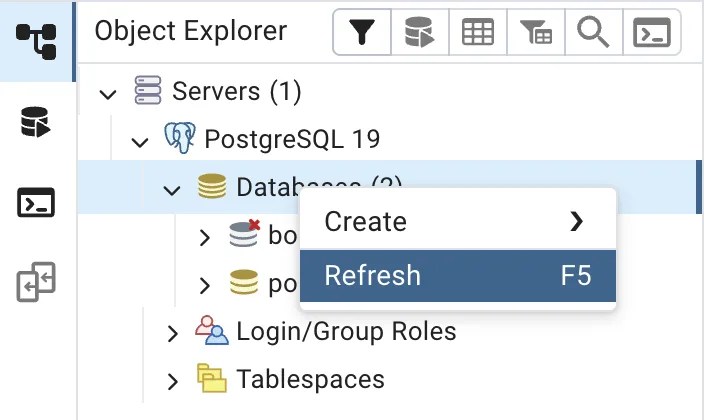
bookstore is listed next to postgres:

The small red cross on its icon means pgAdmin isn’t connected to it yet. pgAdmin connects as soon as you click it.
How to Name a Database
A database name follows the same rules as every other name in SQL, which the PostgreSQL documentation calls identifiers (opens in a new tab). The safe choice is lowercase letters, digits and underscores, starting with a letter: bookstore, book_store or shop2.
PostgreSQL turns every name you type without quotes into lowercase. So BookStore is the same name as bookstore, and creating it again fails:
CREATE DATABASE BookStore;
ERROR: database "bookstore" already exists
Double quotes stop that: "BookStore" keeps its capitals and is a different name, and quotes also allow spaces and hyphens. But then you have to type the quotes, with the same capitals, every time you use the name. That’s why most people stick to lowercase and underscores.
Clean Up
If you’re stopping here and want to remove what this part created, first connect to another database, because PostgreSQL can’t drop the database you’re connected to:
\c postgres
You are now connected to database "postgres" as user "postgres".
Then drop bookstore:
DROP DATABASE bookstore;
DROP DATABASE
Warning: DROP DATABASE deletes the database and everything in it, and it can’t be undone.
If you’re going on to Part 5, keep bookstore: the rest of the tutorial builds on it. How to Drop a Database in PostgreSQL covers the rest, such as IF EXISTS and dropping a database that others are still using.
Common Mistakes
| Mistake | What happens | Do this instead |
|---|---|---|
A hyphen in the name: CREATE DATABASE book-store; | ERROR: syntax error at or near "-" | Use an underscore: book_store. |
| Creating a database that already exists, even with different capitals | ERROR: database "bookstore" already exists | It’s already there. Connect to it with \c bookstore. |
Capitals in psql’s \c: \c BookStore | FATAL: database "BookStore" does not exist, then Previous connection kept | psql’s own commands don’t change capitals. Type the name in lowercase: \c bookstore. |
| Dropping the database you’re connected to | ERROR: cannot drop the currently open database | Connect to another database first: \c postgres. |
Troubleshooting
| Problem | Likely cause | Fix |
|---|---|---|
bookstore doesn’t appear in pgAdmin | pgAdmin loaded its list before you created the database. | Right-click Databases and choose Refresh. |
DROP DATABASE says database "bookstore" is being accessed by other users | Another connection is using the database, for example pgAdmin after you clicked it. | In pgAdmin, right-click bookstore, choose Disconnect from database and click Disconnect. Then run DROP DATABASE bookstore; again. |
FAQ
What are template0 and template1?
They’re the two template databases every PostgreSQL server starts with. CREATE DATABASE copies template1 unless you name another template, and template0 is a pristine copy kept for special cases. template0 vs template1 in PostgreSQL explains when to use which.
Who owns the new database?
The user who created it: postgres here. The owner can change the database’s settings and drop it. To hand it to another user, use ALTER DATABASE … OWNER TO, as How to Change the Owner of a Database in PostgreSQL shows.
Can I rename a database later?
Yes, with ALTER DATABASE … RENAME TO, as long as nobody is connected to it, including you. How to Rename a Database in PostgreSQL walks you through it.
How much disk space does a new database take?
About 7.5 MB, even when it’s empty, because it starts as a copy of a template database with PostgreSQL’s own system tables in it. How to Check the Size of a Database in PostgreSQL shows how to check the size of any database.
Conclusion
You created the bookstore database with CREATE DATABASE, connected to it with \c, and found it in pgAdmin. You also know how to name a database: lowercase letters, digits and underscores, with double quotes only when you really need capitals or other characters.
The database is empty for now. Before you add tables to it, Part 5 looks at the kinds of data a column can hold.
← Previous: Part 3: pgAdmin 4 for Beginners
Coming next: Part 5: Data Types Explained.
Additional Resources
- PostgreSQL 19 documentation: Creating a Database (opens in a new tab)
- PostgreSQL 19 documentation: CREATE DATABASE (opens in a new tab)
- PostgreSQL 19 documentation: DROP DATABASE (opens in a new tab)
- PostgreSQL 19 documentation: Identifiers and Key Words (opens in a new tab)
- PostgreSQL 19 documentation: psql (opens in a new tab)
- PostgreSQL Tutorial for Beginners: every part and setup guide
Postgres, PostgreSQL and the Slonik Logo are trademarks or registered trademarks of the PostgreSQL Community Association of Canada, and used with their permission.


0 comments